


Digital Biz PLR
Beacons Store Setup Tracker PLR
Beacons Store Setup Tracker PLR
Couldn't load pickup availability
Share
🔑 Not sure what PLR or MRR means? [Read our full licence guide →]
Beacons Store Setup Tracker - Your Complete System for Launching & Growing a Profitable Beacons Link-in-Bio Store
You want to sell digital products through your Beacons link-in-bio. You're either starting from scratch or your existing store is getting traffic but no sales.
This Beacons Store Setup Tracker handles both. It walks complete beginners through setup from zero to first sale, and guides existing Beacons users through the most common problems: products buried below social links, Stripe connection failures, and emails landing in spam.
Eight sheets. Automated progress tracking. Real seller problems with exact solutions. From account creation to consistent sales through your link-in-bio, every step mapped out.
Two paths in one system: Launch Mode for new Beacons stores, Optimize Mode for existing stores that need fixing.
Built by Digital Biz PLR after analyzing hundreds of Beacons setups. Every task tested. Every formula automated. Every problem solution validated by creators who've fixed these exact issues.
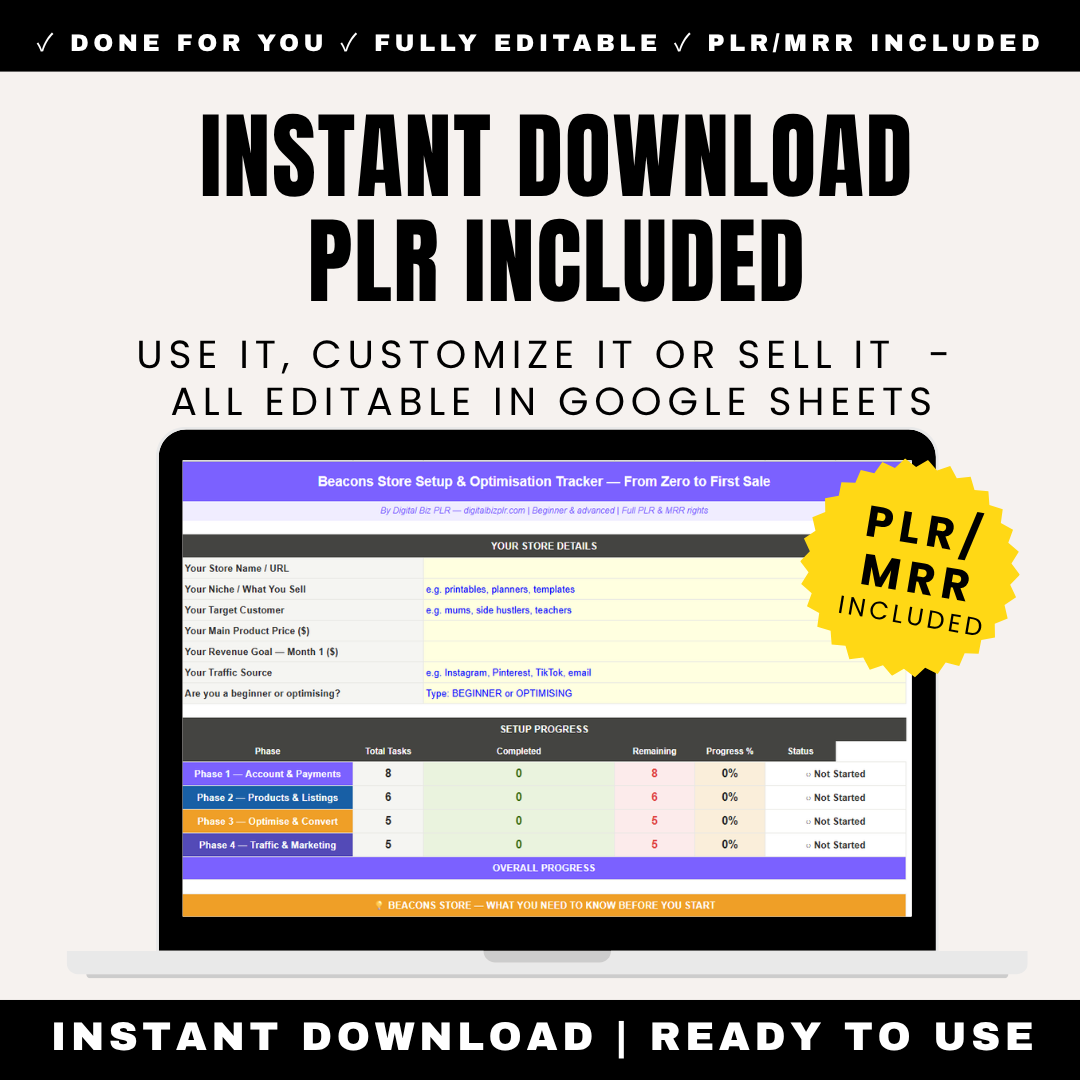
Eight-sheet Google Sheets system for Beacons sellers. Includes: Dashboard (progress overview across all phases, store details entry, Beacons key facts including free plan limitations, Creator Pro features, fees structure, best use cases, platform limitations), Before You Start (beginner vs optimizer path selector, product type guide for 8 categories, pricing calculator, Free vs Creator Pro upgrade threshold calculator showing when paid plan becomes profitable), Store Setup (account creation, Stripe payment connection troubleshooting guide, identity verification, payout settings, digital delivery configuration, email list integration, custom domain setup on Pro plan, store layout optimization), Products & Listings (product creation, description writing for mobile viewers, cover image specs, pricing strategy, product visibility optimization preventing burial below social links, collections organization, featured products setup), Optimize & Convert (for existing stores: fixing product visibility issues, conversion rate analysis, store layout A/B testing, bundle creation, upsell strategy, review collection, analytics interpretation, mobile experience optimization), Traffic & Marketing (platform-specific strategies for Instagram link-in-bio optimization, TikTok bio link strategy, Instagram Stories link stickers, email list building from Beacons, Pinterest traffic, cross-promotion tactics), Problems & Solutions (8 Beacons-specific problems with exact fixes: Stripe connection errors and payment setup failures, products buried below social links with layout reordering, Free plan vs Creator Pro decision calculator, email notifications going to spam folder, low conversion despite traffic, broken download links, refund handling without customer support dashboard, mobile checkout issues), 30-Day Revenue Tracker (daily sales log, AOV auto-calculates, monthly totals, traffic source tracking, free vs paid plan cost comparison). Automated progress bars. Checkbox system. Beacons-specific guidance. Full PLR and MRR Rights. One-time fee. Instant access.
✨ What's Inside The Beacons Store Setup Tracker
Sheet 1: Dashboard (Your Beacons Command Center)
Your Store Details (Fill In Yellow Cells):
- Your Beacons URL: beacons.ai/yourname
- Your Niche: e.g., digital planners, presets, templates, courses, coaching
- Your Primary Platform: e.g., Instagram, TikTok, YouTube, Twitter/X
- Your Main Product Type: e.g., digital downloads, online courses, memberships
- Current Follower Count: Your audience size on main platform
- Current Monthly Revenue ($): Starting point or current earnings
- Revenue Goal Month 1 ($): Your target
- Your Beacons Plan: Free or Creator Pro ($10/month)
Setup Progress (Updates Automatically):
| Phase | Total Tasks | Completed | Remaining | Progress % | Status |
|---|---|---|---|---|---|
| Store Setup | 11 | 0 | 11 | 0% | Not Started |
| Products & Listings | 13 | 0 | 13 | 0% | Not Started |
| Optimize & Convert | 10 | 0 | 10 | 0% | Not Started |
| Traffic & Marketing | 12 | 0 | 12 | 0% | Not Started |
Beacons Key Facts (Know Before You Start):
5 critical things about Beacons that every seller needs to know:
- Beacons is a link-in-bio tool FIRST, store SECOND. Unlike dedicated e-commerce platforms, Beacons prioritizes social links, videos, and content. Your products can easily get buried below other elements. Strategic layout is critical for sales.
- Free plan vs Creator Pro decision matters from day one. Free plan: 9% transaction fee on sales, limited customization, Beacons branding, no custom domain. Creator Pro ($10/month): 5% fee, full customization, remove branding, custom domain, priority support. Break-even: If you make $250+/month, Pro plan is more profitable.
- Stripe connection issues are THE most common problem. Beacons uses Stripe for payments. New sellers frequently encounter: "Stripe connection failed", "Unable to verify bank account", "Payment processing unavailable". These have specific fixes that support won't always tell you.
- Email deliverability is a known issue. Beacons sends purchase confirmation and download link emails. These FREQUENTLY land in spam folders. Buyers think they didn't receive the product and request refunds. You must proactively tell buyers: "Check spam folder for your download."
- Best for: Instagram creators, TikTok creators, YouTubers, influencers with engaged audiences who want one-link solution. If you're already getting "link in bio" clicks but sending people to multiple platforms, Beacons consolidates everything. Your audience already trusts you — Beacons just simplifies their buying path.
Why this matters: Most Beacons sellers treat it like Stan Store or Gumroad. It's not. Beacons is optimized for link-in-bio consolidation with store as ONE feature among many. Success requires understanding this positioning.
Sheet 2: Before You Start (Choose Your Path & Calculate Your Plan)
STEP 1 — Which Path Are You On?
Select Your Starting Point:
PATH A: BEGINNER (I'm launching a new Beacons store)
- You've never sold through Beacons before
- You might have Beacons already but haven't added products
- You want to set up your store and make your first sale
- → Follow: Store Setup → Products & Listings → Traffic & Marketing
PATH B: OPTIMIZER (I have a Beacons store but it's not working)
- Products are already listed but getting no sales
- Your products are buried below social links and videos
- Stripe connection keeps failing
- Buyers say they never received download links (spam folder issue)
- → Skip to: Optimize & Convert → Problems & Solutions
STEP 2 — Free Plan or Creator Pro? (Upgrade Threshold Calculator)
Input your details:
- Expected monthly sales volume (number of sales)
- Average product price
- Need for custom domain? (Yes/No)
- Need to remove Beacons branding? (Yes/No)
Calculator shows automatically:
Example Calculation:
- Scenario: 30 sales/month at $20 average = $600 revenue
- Free plan: $600 × 9% fee = $54 in fees → Net: $546
- Creator Pro: $600 × 5% fee = $30 fees + $10 subscription = $40 total → Net: $560
- → Recommendation: Upgrade to Creator Pro. You'll net $14 more per month AND get custom domain + branding removal.
General Rules:
- Under $200/month revenue: Stay on Free (9% of small amount = minimal fees)
- $200-400/month: Consider Pro if you value custom domain
- $400+/month: Pro is mathematically better (fee savings exceed $10)
- $1,000+/month: Pro is essential (9% = $90 vs 5% = $50 + $10 = $60, saving $30/month)
STEP 3 — Product Type & Pricing Guide
Select your main product category (1-8) with Beacons-specific recommendations included.
Sheet 3: Store Setup (Technical Foundation - 11 Tasks)
For Beginners (Path A) - Complete all 11 tasks.
ACCOUNT & PAYMENT SETUP (5 Tasks)
| Task | How To Do It | Why It Matters | Beacons-Specific Tips |
|---|---|---|---|
| Create or access your Beacons account | Go to beacons.ai → Sign up with Instagram, TikTok, or email. Your URL becomes beacons.ai/yourhandle. If signing up with Instagram, Beacons auto-imports your handle. This becomes your permanent link-in-bio URL. | Your beacons.ai URL goes in every social bio. Choose wisely — changing it later breaks all existing links in your content. Use your most recognizable handle across platforms. | Beacons auto-syncs with your connected social accounts. Updates to your Instagram bio photo will sync to Beacons profile automatically. This saves setup time but review the synced info for accuracy. |
| Connect Stripe for payments (CRITICAL STEP) | Beacons → Settings → Payments → "Connect Stripe". You'll redirect to Stripe sign-up. Enter: Business info (can use personal name for sole proprietor), Bank account for payouts, Tax ID (SSN or EIN for US sellers). Stripe verifies in 1-2 business days. | THIS IS THE MOST COMMON FAILURE POINT. Stripe connection errors block ALL sales. Without verified Stripe, your products appear listed but checkout fails. Buyers see "Payment processing unavailable" error. | Common error: "Stripe connection failed" Fix: 1) Use business email (not Gmail) if possible, 2) Make sure business name matches bank account, 3) Clear browser cache and try again, 4) Use desktop not mobile for setup. See Problem #1 for full troubleshooting. |
| Verify your identity with Stripe | Stripe requires photo ID verification for sellers. Upload: Government-issued ID (driver's license or passport). This prevents fraud and unlocks full payout capability. Approval takes 24-48 hours typically. | Without ID verification, Stripe limits payouts. You might make sales but can't withdraw money. First-time sellers often skip this step and panic when they can't access funds. | Beacons support cannot speed up Stripe verification — it's handled entirely by Stripe. Plan for 48-hour wait before going live. Don't launch products until Stripe is fully approved. |
| Set your payout schedule | Beacons uses Stripe's payout system. Options: Daily, Weekly (default), or Monthly. First payout: 7-14 day hold for new accounts (Stripe fraud protection). After 2-3 successful payouts, money flows normally to your bank account. | NEW SELLERS: Don't panic when first payment is delayed. The 7-14 day hold is standard Stripe policy for all new merchants, not a Beacons-specific issue. This protects buyers and sellers from fraud. | Check Beacons → Wallet → Payout History to track pending transfers. Stripe sends email notifications when money is deposited to your bank. Usually arrives 2 business days after payout is processed. |
| Configure tax settings | Beacons → Settings → Taxes. For US sellers: Add your state tax rate if required (varies by state). For international sellers: VAT is NOT automatically collected (unlike Gumroad). You're responsible for reporting and remitting tax in your country. | Tax compliance is your responsibility. Beacons doesn't handle tax collection/remittance like Gumroad or Etsy. Consult local tax laws or an accountant for digital product sales requirements. | Most US states don't tax digital goods, but some do (Texas, Pennsylvania, Minnesota, etc). Check your state's digital sales tax rules. Not Beacons' job to know — it's on you. |
STORE CUSTOMIZATION (3 Tasks)
EMAIL & DELIVERY SETUP (3 Tasks)
Sheet 4: Products & Listings (Creating Your Catalog - 13 Tasks)
For Beginners (Path A) - Critical focus: Product visibility above social links.
PRODUCT CREATION & VISIBILITY (5 Tasks)
| Create your first product | Beacons → Store → "Add Product" → Upload file (PDF, ZIP, video, audio - max 2GB), Set title (60 characters), Set price, Write description. Product appears as a card on your Beacons page. The order matters for visibility — see next task. | Products in Beacons compete for attention with social links, videos, and other elements. Unlike dedicated stores, your products aren't the only thing on the page. Strategic placement is critical. |
| Fix product burial issue (CRITICAL) | THE PROBLEM: By default, Beacons places social links, featured videos, and Instagram feed ABOVE your products. Visitors click into your Beacons, scroll past all your content, and never see your store. THE FIX: Beacons → Edit Page → Drag your "Shop" section to position #2 or #3 (after bio/profile, before social links). Test on mobile. | This is THE #1 reason Beacons stores fail. Sellers get traffic but zero sales because products are buried below 15 social links and Instagram feed. If visitors have to scroll 3+ screens to see your products, they won't buy. |
| Create product cover images optimized for mobile | Recommended: 800x800px (1:1 square ratio). Mobile viewers see these as grid thumbnails. Make them bold and benefit-clear. Include: Product mockup, Benefit text (LARGE font, readable at small size), Your branding colors. Avoid: Text-heavy designs, small fonts, busy backgrounds. | 80%+ of Beacons traffic is mobile. Your cover image shows at thumbnail size in the shop grid. If the benefit isn't instantly clear at small size, buyers scroll past it. |
| Write mobile-optimized product descriptions | Beacons shows descriptions in a modal popup on mobile. Keep it scannable: 3-5 sentence intro (what it is), Bullet points (what's included), 2-3 sentences (who it's for), Clear CTA ("Get instant access"). Avoid long paragraphs — mobile readers skim. | Mobile buyers won't read 500-word descriptions. If they can't understand what you're selling in 10 seconds of skimming, they close the modal and leave. |
| Set up "Featured Products" at top of shop | Beacons lets you pin 1-3 products as "Featured" — these appear at the very top of your shop section. Feature: Your best-seller (social proof draws in new buyers), Your newest product (if launching), Your lowest-priced "entry product" (reduces barrier to first purchase). | Featured products get 3-5x more visibility than non-featured. Use this strategically. Don't feature your most expensive product — feature the one you want most people to see first. |
PRODUCT OPTIMIZATION (4 Tasks)
STORE LAYOUT (4 Tasks)
Sheet 5: Optimize & Convert (For Existing Stores - 10 Tasks)
For Optimizers (Path B) - Fix visibility and conversion issues.
VISIBILITY FIX (3 Tasks)
| Audit your Beacons layout on mobile | Open your beacons.ai link on your phone. Scroll through as if you're a visitor. Count: How many screens do you scroll before seeing "Shop" section? How many links/elements appear before products? Goal: Shop section visible within 1.5 screens max (after bio and 1-2 key links). | If your shop is buried below 10+ social links, email signup, Instagram feed, YouTube videos, and TikTok embeds, nobody reaches it. Most visitors leave after 1-2 screens. Make your shop unmissable. |
| Reorder your Beacons page elements | Beacons → Edit Page → Drag to reorder. Recommended order for sellers: 1) Profile/Bio, 2) CTA button ("Shop My Digital Products"), 3) Shop Section (your products), 4) Email signup, 5) Social links, 6) Content (videos/posts). Shop goes in top 3 always. | Your #1 income driver (Shop) should not be below your #7 priority (Instagram feed). Prioritize revenue-generating elements at the top. Social links can go at bottom — they're for discovery, not direct monetization. |
| Add shop CTA button above products | Beacons → Edit Page → Add "Button" block → Place it directly above Shop section → Label: "👇 Shop My [Product Type]" or "Get My [Bestselling Product]" → Style it in your brand color. This primes visitors that products are coming. | Context switching: If someone is clicking through your social links and suddenly sees products, they're confused. A CTA button signals: "Okay, store section starts here." This reduces bounce rate. |
CONVERSION OPTIMIZATION (4 Tasks)
ANALYTICS DEEP DIVE (3 Tasks)
Sheet 6: Traffic & Marketing (Platform-Specific Strategies - 12 Tasks)
Beacons is built for Instagram and TikTok link-in-bio traffic.
INSTAGRAM STRATEGY (4 Tasks)
| Optimize your Instagram bio for Beacons | Format: Line 1: Who you help + what you sell. Line 2: Social proof or urgency ("Trusted by 10K+ creators"). Line 3: "Shop all my products below 👇". Link field: Your beacons.ai URL. Use emojis to draw eye to the link: 🔗 👇 ⬇️ make links more clickable. | Your Instagram bio is your Beacons storefront entrance. If visitors don't understand what you sell or don't realize your link leads to products, they won't click through. |
| Use Instagram Stories to drive Beacons traffic | Post Stories 3-5x/day: Product teasers, Behind-the-scenes, Testimonials/screenshots, "Link in bio" CTAs. Use link sticker pointing to beacons.ai. Swipe-up stickers (for accounts with 10K+ followers) drive direct traffic. Under 10K: "Link in bio" strategy. | Stories are seen by your most engaged followers. They expire in 24 hours, so promotional frequency is forgiven. Link stickers have 5-8x higher click-through rate than "link in bio" text CTAs. |
| Create Instagram Reels with Beacons CTAs | Post Reels 3-5x/week ending with CTA: "Link in bio for [specific product]" or "Shop in bio for instant access". Show the product in use during the Reel — don't just talk about it. Final frame text: "Link in bio ⬇️". | Reels are Instagram's highest reach format. One viral Reel can send hundreds to your Beacons. But ONLY if your CTA is clear and your Beacons layout makes finding products easy (see Sheet 5). |
| Pin Beacons link comment on every post | When you post to Instagram feed, immediately comment: "Shop here: [your beacons.ai URL]" → Pin your comment. This makes your link tappable directly from feed posts. Increases click-through by 20-30% vs relying only on bio link. | Instagram doesn't make feed captions clickable. Comments DO allow clickable links (though not underlined). Pinning puts your link at top of comments where everyone sees it. |
TIKTOK STRATEGY (3 Tasks)
OTHER PLATFORMS (5 Tasks)
Sheet 7: Problems & Solutions (8 Beacons-Specific Issues)
PROBLEM 1: Stripe connection keeps failing / payments not working
The Error Messages You Might See:
- "Stripe connection failed"
- "Unable to verify bank account"
- "Payment processing is currently unavailable"
- "Stripe account restricted"
Diagnosis Questions:
- Is this your first time connecting Stripe? (New accounts face more verification hurdles)
- Did you use a Gmail address? (Business emails work better)
- Does your business name match your bank account name exactly?
- Have you uploaded ID verification to Stripe?
- Did you try on mobile? (Desktop works better for Stripe setup)
Exact Fixes (Try in This Order):
Fix 1: Clear browser cache and use incognito mode
- Beacons → Settings → Payments → Disconnect Stripe (if partially connected)
- Close browser completely
- Open new incognito/private window
- Log into Beacons again → Try Stripe connection again
- Why this works: Cached cookies sometimes cause Stripe connection loops. Fresh session often resolves it.
Fix 2: Use business email instead of Gmail
- If you used Gmail, Stripe might flag you as higher risk
- Get a custom domain email (yourname@yourbusiness.com) via Google Workspace ($6/month) or Zoho Mail (free)
- Create new Stripe account with business email
- Connect that Stripe account to Beacons
- Why this works: Business emails signal legitimacy to Stripe's fraud detection.
Fix 3: Ensure name consistency across everything
- Stripe business name MUST match bank account name MUST match ID verification name
- Example mismatch: Stripe "Sarah's Shop" vs Bank "Sarah Johnson" = verification failure
- Fix: Use your legal name everywhere, OR register business name officially and use that everywhere
- Why this works: Stripe verifies identity across multiple sources. Inconsistency = red flag = connection fails.
Fix 4: Complete Stripe verification fully before connecting to Beacons
- Don't connect Stripe to Beacons until Stripe account is 100% verified
- Go directly to stripe.com → Create account → Complete ALL verification steps → THEN connect to Beacons
- Upload ID, verify bank account, confirm business details
- Why this works: Partial Stripe accounts fail when connected to third-party platforms.
Fix 5: Contact Stripe support directly (not Beacons support)
- Beacons support can't fix Stripe issues — they're separate companies
- Go to stripe.com → Support → Chat → Explain the connection error
- Stripe can see backend restrictions Beacons can't
- Common finding: Your account was flagged for review (30-day wait), or your business type isn't supported (adult content, crypto, gambling)
PROBLEM 2: My products are getting traffic but zero sales
This means product visibility is working but conversion is broken.
Diagnosis:
- Check Beacons Analytics → Shop Clicks vs Sales. If clicks are high (50+) but sales are zero, your product page is the problem.
Common Causes & Fixes:
Cause 1: Price is shown but value isn't clear
- Fix: Rewrite product title and description to lead with transformation, not features. "Instagram Growth Playbook - 10x Your Reach in 30 Days" beats "My Instagram Course (32 Pages)".
Cause 2: No social proof
- Fix: Add testimonials to product description. If you have zero sales yet, offer first 10 buyers a discount in exchange for honest review. Even 3-5 reviews boost conversion significantly.
Cause 3: Cover image doesn't match description
- Fix: Ensure your cover image shows what the product actually is. Generic stock photos tank trust. Show the actual PDF, template, or course dashboard.
Cause 4: Email spam folder issue (see Problem #4)
- Buyers ARE purchasing but never receive download link because email went to spam
- They request refunds thinking they didn't get the product
- Fix: Add text to product description: "After purchase, check your spam folder for the download link from hello@beacons.ai"
PROBLEM 3: Free plan or Creator Pro? Can't decide
PROBLEM 4: Buyers say they never received the download link
PROBLEM 5: Products buried below social links, getting no visibility
PROBLEM 6: Refunds but no way to track them in dashboard
PROBLEM 7: Download links are broken or files won't open
PROBLEM 8: Mobile checkout experience is clunky
All 8 problems include diagnosis questions, exact fixes, and prevention strategies.
Sheet 8: 30-Day Revenue Tracker
Track your Beacons store performance + Free vs Pro plan cost comparison.
Columns:
- Day (1-30)
- Date
- Revenue ($)
- Orders
- AOV ($): Auto-calculates
- Traffic Source: Instagram, TikTok, YouTube, Pinterest, Other
- Beacons Plan: Free (9%) or Pro (5% + $10)
- Fees Paid ($): Auto-calculates based on plan
- Net After Fees ($): Auto-calculates
30-Day Totals with Plan Comparison:
- Total gross revenue
- Total fees paid (actual)
- Net revenue after fees (actual)
- → Comparison Calculator: "If you had been on [other plan], you would have paid $X in fees and netted $Y. Savings/Loss: $Z"
Why this tracker is powerful: Shows EXACTLY when upgrading to Creator Pro becomes profitable based on YOUR real numbers, not estimates.
🎯 Who This Tracker Is For
- ✓ Instagram Creators - Monetizing link-in-bio
- ✓ TikTok Creators - Consolidating products in bio link
- ✓ YouTubers - Selling courses and products via link
- ✓ Influencers - Simplifying product access for audience
- ✓ Digital Product Sellers - Want all-in-one link solution
- ✓ Coaches & Consultants - Offering packages via link-in-bio
- ✓ Course Creators - Alternative to complex course platforms
- ✓ Preset Sellers - Photographers selling Lightroom presets
- ✓ Template Creators - Notion, Canva templates
- ✓ Existing Beacons Users - Store set up but not converting
🔥 Why This Tracker vs. Figuring Out Beacons Yourself
Learning Beacons from Scratch:
- ❌ Stripe connection fails repeatedly, no idea why
- ❌ Products listed but buried below 15 social links
- ❌ Traffic to Beacons but zero store clicks
- ❌ Buyers complain they never got download (spam folder)
- ❌ Can't decide Free vs Pro, waste money on wrong plan
- ❌ No way to track which traffic source drives sales
- ❌ Refund requests but no dashboard to manage them
- ❌ Give up after 30 days of no sales
With This Beacons Store Setup Tracker:
- ✅ Stripe troubleshooting guide - Fix connection errors in order
- ✅ Product visibility optimization - Stop products getting buried
- ✅ Layout reordering instructions - Strategic page design
- ✅ Email spam folder solutions - Proactive buyer communication
- ✅ Free vs Pro calculator - Data-driven plan decision
- ✅ Traffic source tracking - Know what's working
- ✅ 8 Beacons-specific problems solved - Hours of troubleshooting saved
- ✅ 30-day plan comparison - See when to upgrade
📊 Beacons vs Other Platforms
When to Choose Beacons:
- ✅ You primarily promote via Instagram or TikTok
- ✅ You want ONE link consolidating all content + products
- ✅ You value simplicity over customization
- ✅ You're okay with products sharing space with social links
- ✅ You have engaged audience who already clicks your bio link
When NOT to Choose Beacons:
- ❌ You want dedicated storefront (use Stan Store or Gumroad)
- ❌ You need heavy customization (use Shopify)
- ❌ Products are your primary focus (Beacons is link-in-bio first)
- ❌ You want marketplace traffic (use Etsy or Gumroad Discover)
💰 Includes Full PLR and MRR Rights
- ✅ Use for your own Beacons store
- ✅ Rebrand and resell
- ✅ Include in coaching programs
- ✅ Give to clients
- ✅ Bundle with other products
- ✅ Offer MRR rights to buyers
📦 What You Get Immediately
- ✅ 8-Sheet Google Sheets System
- ✅ Dashboard with Progress Tracking
- ✅ Free vs Creator Pro Calculator
- ✅ Stripe Connection Troubleshooting Guide
- ✅ Product Visibility Optimization
- ✅ Problems & Solutions (8 Beacons Issues)
- ✅ 30-Day Revenue Tracker with Plan Comparison
- ✅ Full PLR and MRR Rights
❓ FAQ
Is this for Beacons beginners?
Yes! Path A walks through setup from scratch.
What if my Beacons store is already set up?
Perfect! Path B fixes visibility and conversion problems.
How do I fix products being buried?
Sheet 4 + Problem #5 cover layout optimization with drag-and-drop reordering instructions.
Why does Stripe keep failing?
Problem #1 has 5 fixes in order: cache clearing, business email, name consistency, full verification, Stripe support contact.
Should I upgrade to Creator Pro?
Sheet 2 has calculator. General rule: Under $200/month stay Free, $400+/month upgrade to Pro.
Why aren't buyers receiving downloads?
Problem #4 covers spam folder issue + proactive solutions.
Can I sell this to my clients?
Yes! Full PLR/MRR included.
🔗 Launch Your Beacons Store the Right Way
Beacons Store Setup Tracker. Eight sheets. Two paths. Includes: Dashboard, Free vs Pro calculator with break-even analysis, Store Setup with Stripe troubleshooting, Products & Listings with visibility optimization, Optimize & Convert with layout fixes, Traffic & Marketing Instagram/TikTok strategies, Problems & Solutions for 8 Beacons-specific issues, 30-Day Revenue Tracker with plan comparison. Full PLR/MRR Rights. Instant access.
Perfect for: Instagram creators, TikTok creators, YouTubers, influencers, digital product sellers, coaches, course creators, preset sellers, template creators, existing Beacons users needing optimization
Turn your link-in-bio into a revenue stream. Get started now.
Questions? Contact us here
What You Will Receive
What You Will Receive
1 x PDF with instructions - Includes a link to your digital download.
You will receive it straight away! This is a DIGITAL PRODUCT which means no physical item will be shipped to you.
What does PLR, MRR, Commercial Output mean?
What does PLR, MRR, Commercial Output mean?
PLR (Private Label Rights) means you can edit, rebrand and resell this product as your own.
MRR (Master Resell Rights) means you can sell the product and also pass resell rights to your buyers.
Personal Use means you can use it for yourself but not resell it.
Commercial Output Rights means you can sell anything you create using this product.
Every product listing states which rights are included.
Resell Licence
Resell Licence
Each product has a resell licence attached to it. Please check the individual listing to see if they come with a Personal Use or an MRR & PLR licence. If they come with a MRR & PLR licence then you can rebrand and resell the content. If not, you cannot.
Returns Policy
Returns Policy
Due to the nature of this product being an instant download and the digital nature of this product, returns, refunds and exchanges cannot be accepted.
Make sure to read all the information and ask all of your questions before purchasing.


Did You Know Entrepreneurs Using PLR Products See 40% Higher Profit Margins
-
1. Work Smart, NOT HARD!
Our PLR products come pre-made and ready to customize, allowing you to skip the content creation process. Simply rebrand them with your colors, images etc, tweak as needed, and put them to work for your business.
-
2. If Your Marketing Costs Are High!
Our PLR products include MRR, you can resell these assets to generate additional income, covering your marketing costs and boosting profits.
-
3. Struggling to Stay Consistent?
Our PLR products are easy to use, providing you with a consistent stream of content for marketing, customer engagement, and lead nurturing, so you never run out of ideas.
Save Over 500 Hours Per Year Using Our PLR Products
Frequently Asked Questions
What is the difference between PLR & MRR products?
- Private Label Rights Products: Refers to the digital products that you can customize and sell as your own - WITHOUT the ability to pass on resell rights to your customers.
- Master Resell Rights Products: Refers to the digital products that you can customize and sell as your own - WITH the ability to pass on resell rights to your customers.
What can you do with Digital Biz PLR products?
Here are some ways you can use our digital products:
- Edit, tweak and customise in Canva, export as PDF and start selling as your own with no attribution required
- Use the product to create a new digital product, lead magnet or add to your course or membership
- Sell to your clients as a final product without having to create it from scratch
- Use for Print on Demand products such as journals, planners and ebooks
Are there any hidden or on-going fees?
No, it is just a one-time investment and you can get started!
What do PLR, MRR and Commercial Output mean?
PLR (Private Label Rights) means you can edit, rebrand and resell this product as your own.
MRR (Master Resell Rights) means you can sell the product and also pass resell rights to your buyers.
Personal Use means you can use it for yourself but not resell it.
Commercial Output Rights means you can sell anything you create using this product. Every product listing states which rights are included.
I'm ready to make money now. How do I start?
Simply Click the "Add To Cart" button on top and make your one-time purchase to get instant access to the product.